Browser Plugin Guide
This guide will walk you through how to install and use the AiToEarn browser plugin, enabling you to manage your social media accounts and publish content more conveniently.
Recommended Browsers
Install Plugin
Step 1: Open Plugin Management Dialog
On the AiToEarn platform page, click the plugin icon in the upper right corner to open the browser plugin management dialog.
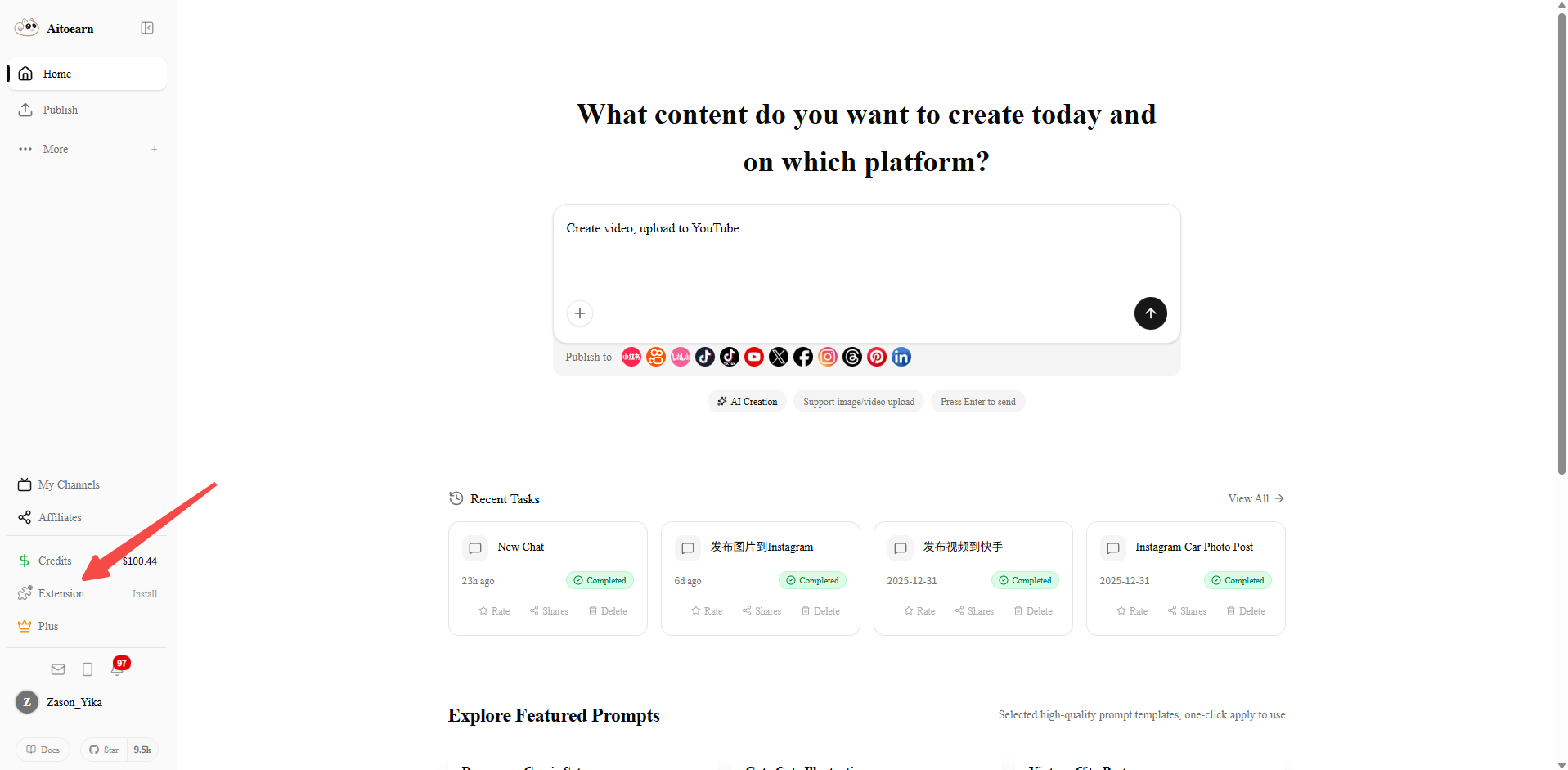
Step 2: Download the Plugin
Select the download method in the dialog and click to download the plugin.
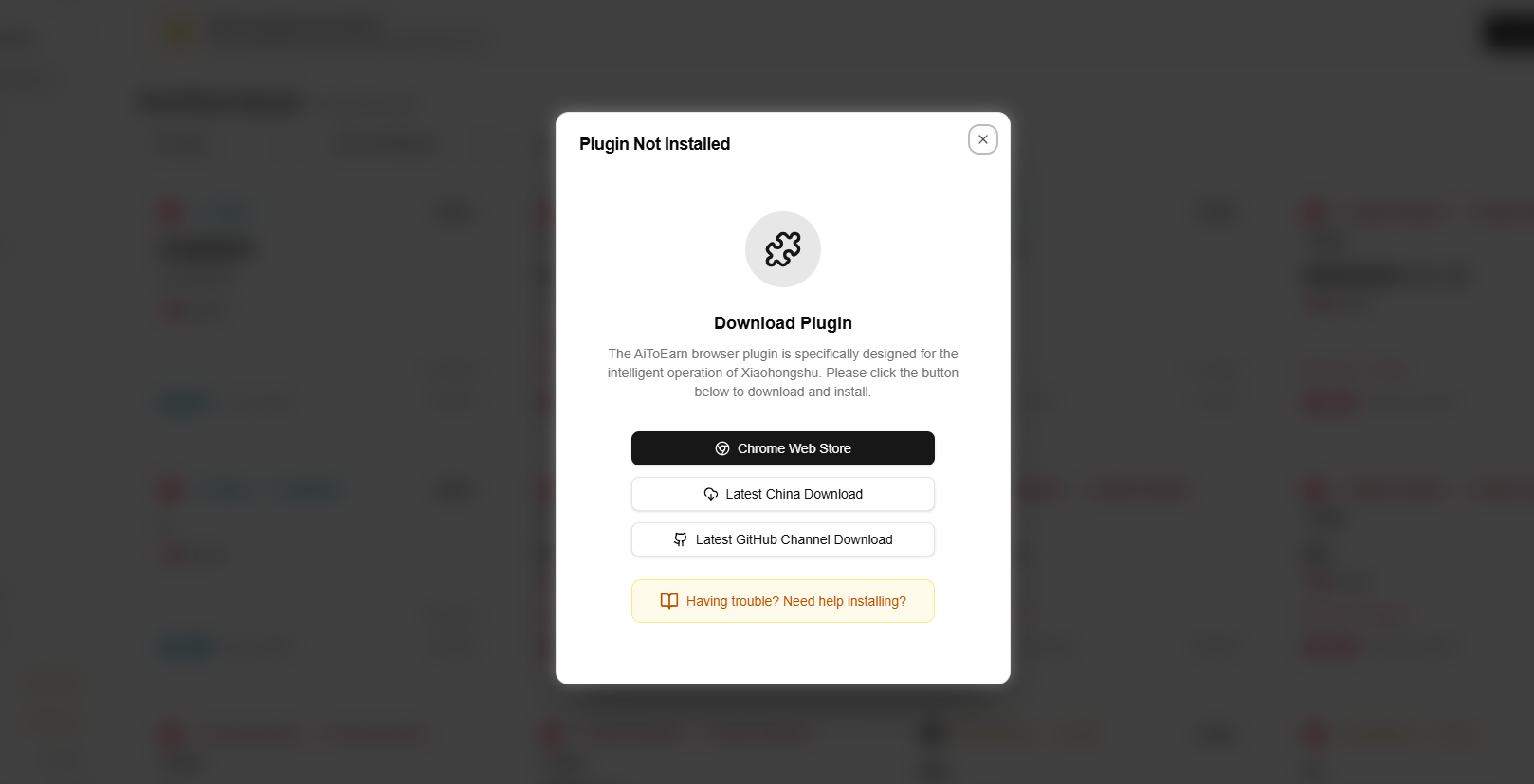
Download channel notes:
- Chrome Web Store: We recommend installing from the Chrome Web Store, but store reviews can take time. When new features are released early, the Chrome Web Store version may still be an older build. If you do not need the latest features immediately, you can wait for the review to finish. Chrome Web Store also updates plugins automatically. If you need the latest plugin package, use Latest China Download or Latest GitHub Channel Download.
- Latest GitHub Channel Download: This channel provides the newest plugin package. New browser-plugin updates are published here first, then submitted to the Chrome Web Store, which usually takes another 4-5 days for review.
- Latest China Download: Users in mainland China who cannot use the Chrome Web Store can download the latest plugin package from this channel.
Note: users who install from Latest China Download or Latest GitHub Channel Download will still receive Chrome Web Store auto-updates after review. If you need the update sooner, please seethe manual update guide.
Manual Installation
For Latest GitHub Channel Download and Latest China Download
Notice
1Enter Extensions Management Page
Click the three-dot menu in the upper right corner of the browser, and click to enter "Manage Extensions" page.
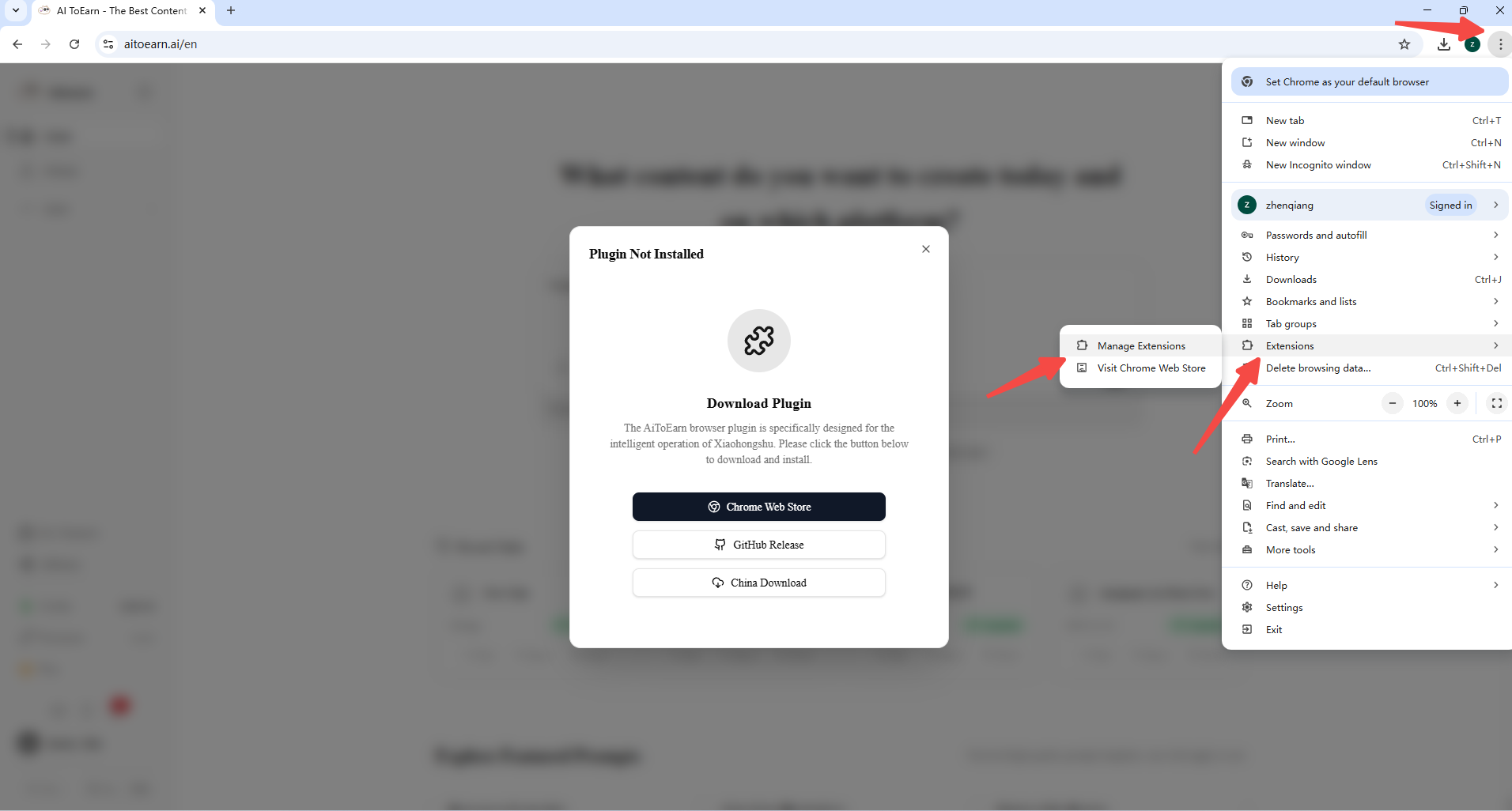
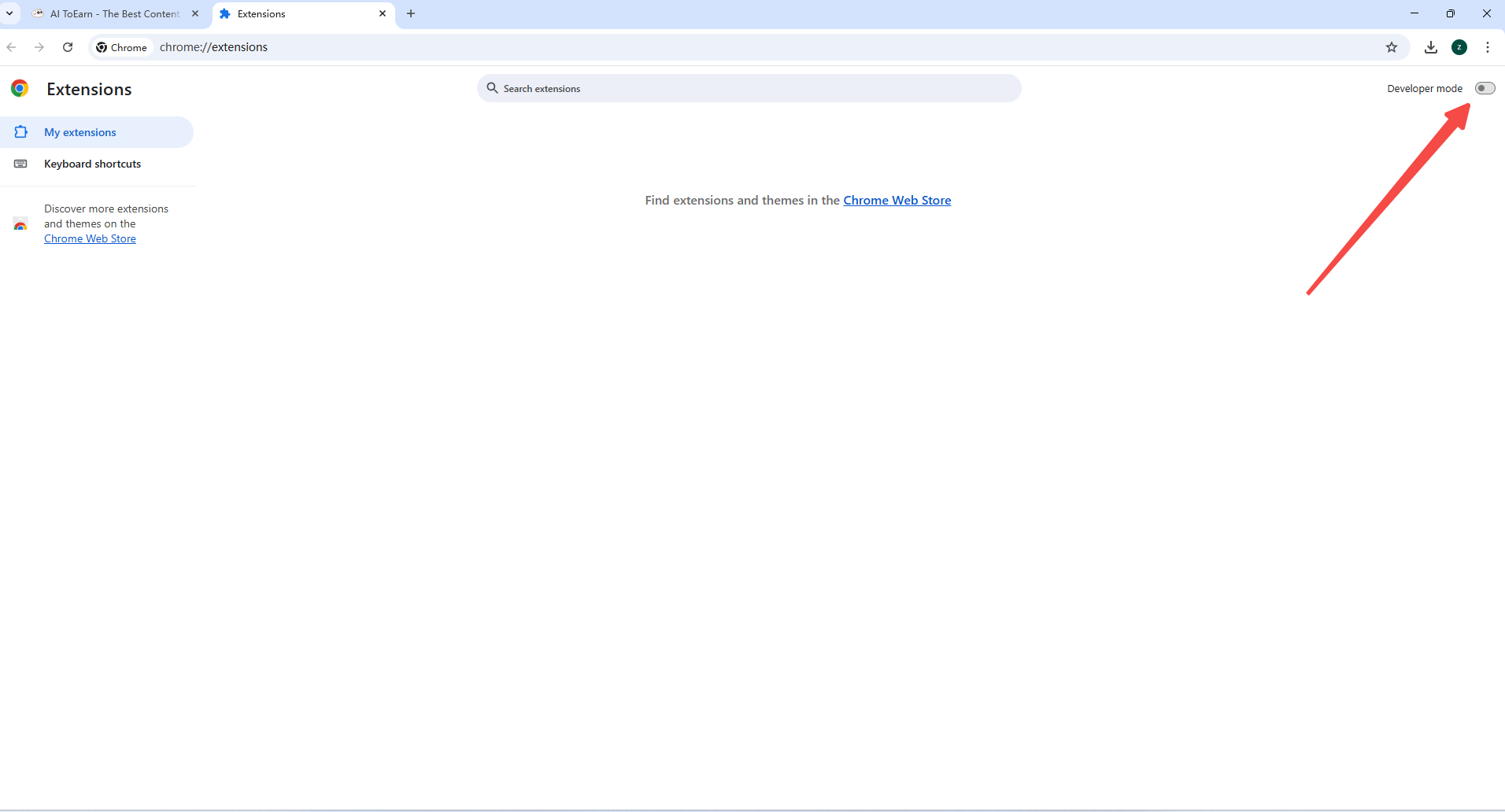
2Enable Developer Mode
In the upper right corner of the extensions page, enable "Developer mode".
3Locate the Downloaded Package
Open your browser's download folder and find the downloaded .crx plugin package.
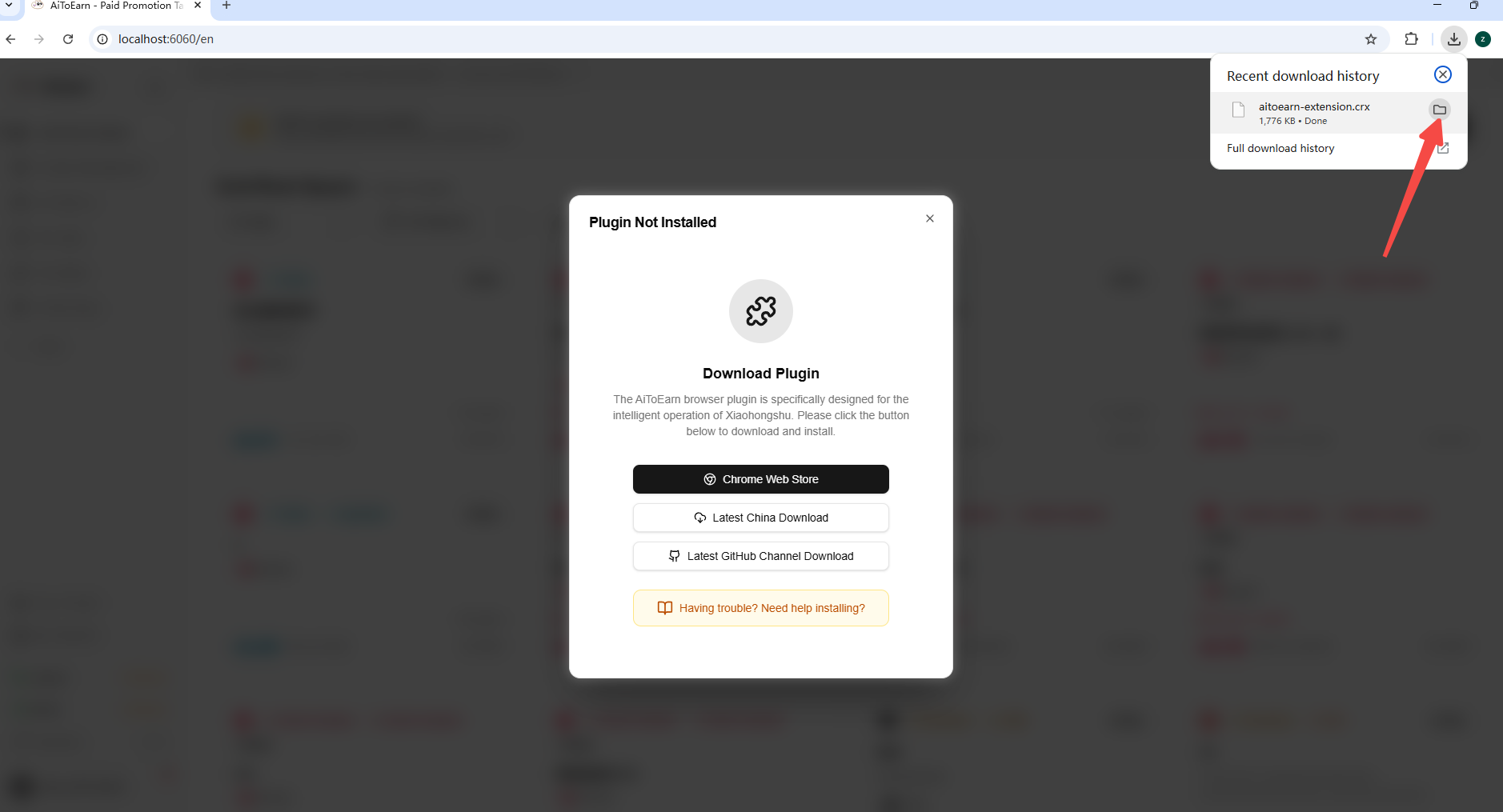
4Drag the Package into Extensions
Drag the .crx plugin package into the browser extensions area.
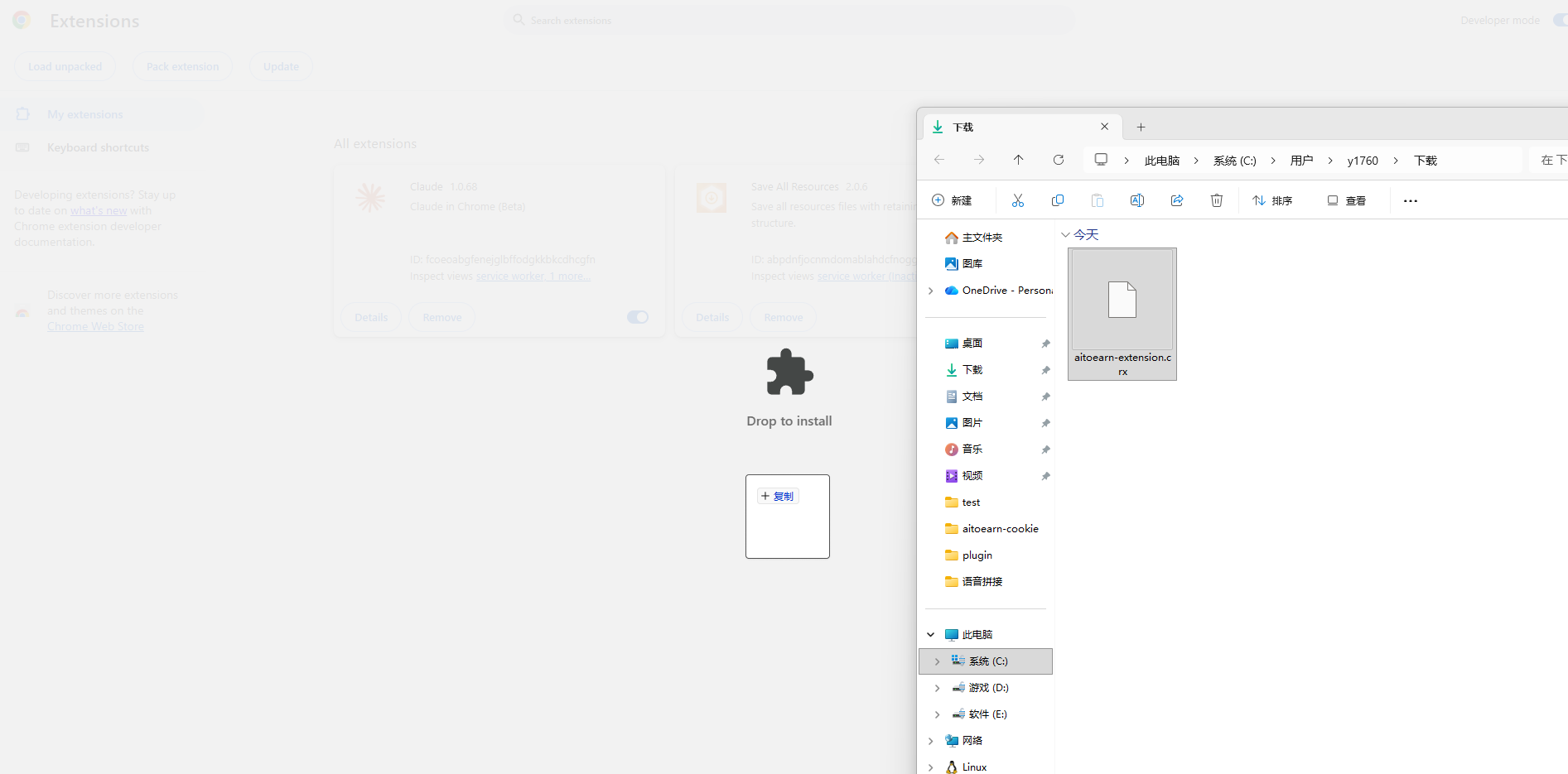
5Confirm Extension Installation
Click "Add extension" in the confirmation dialog to install the plugin.
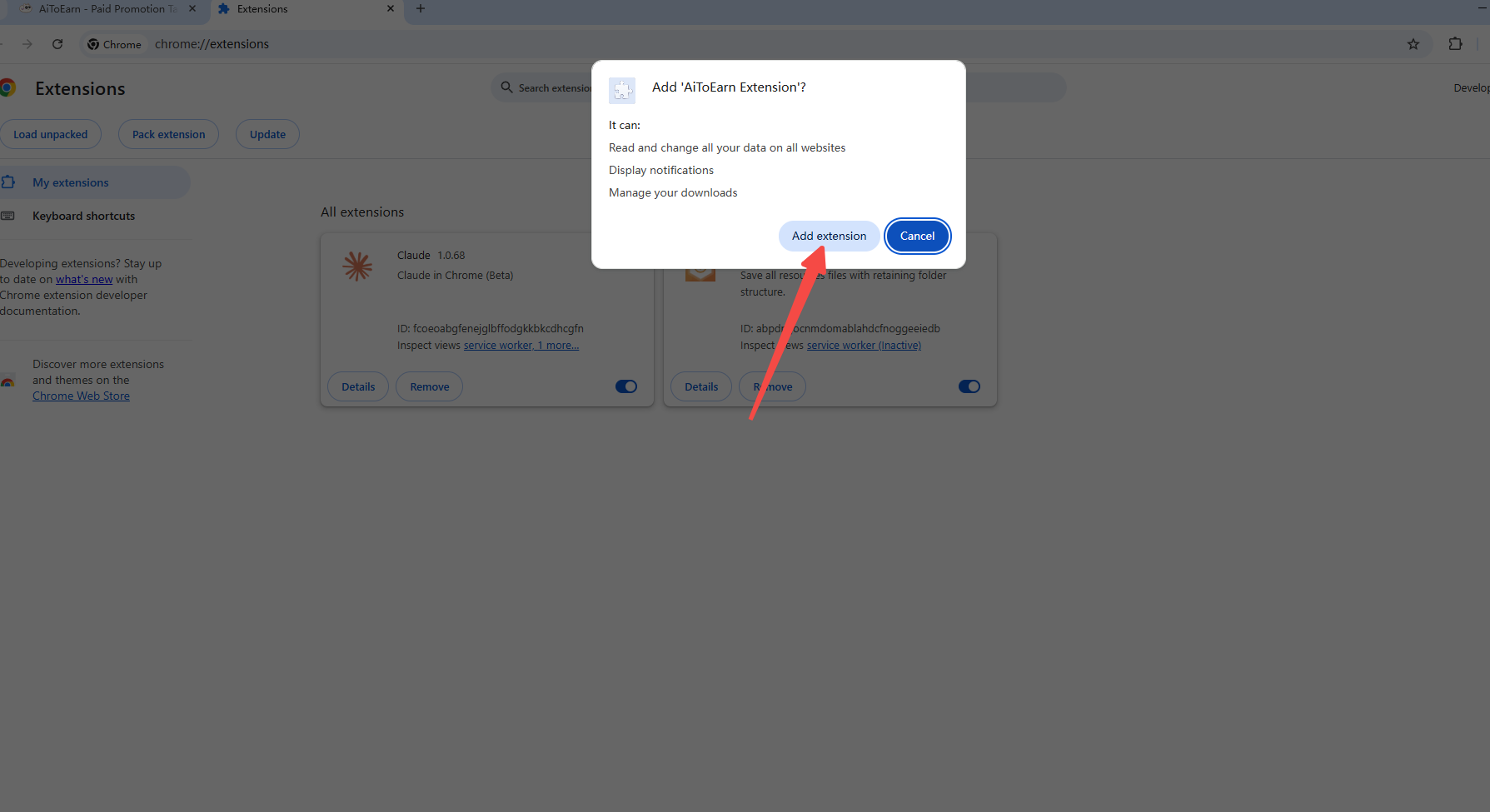
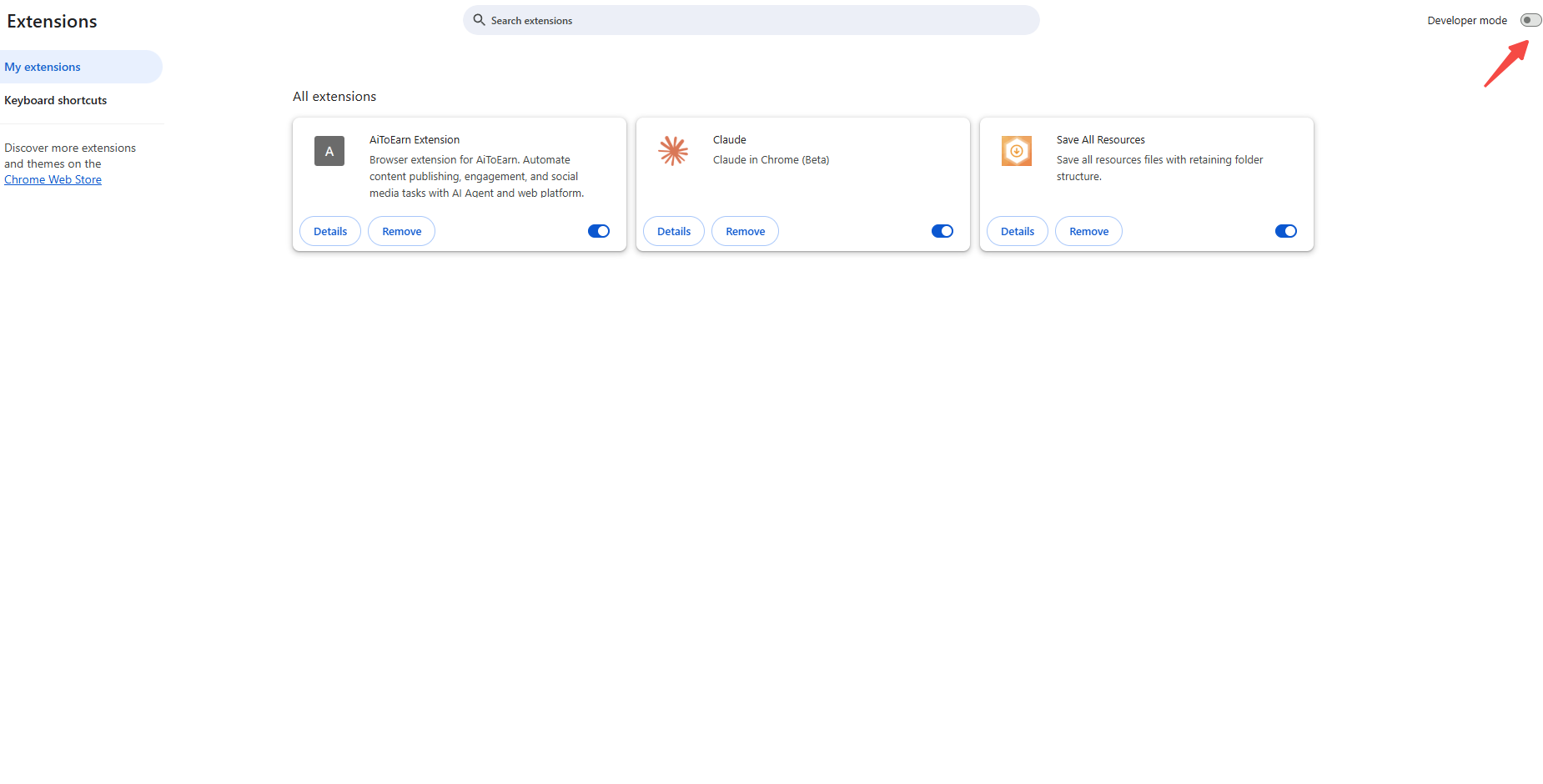
6Turn Off Developer Mode
After the installation is complete, you can turn off Developer mode.
Authorize Plugin
Step 3: Check Installation Status
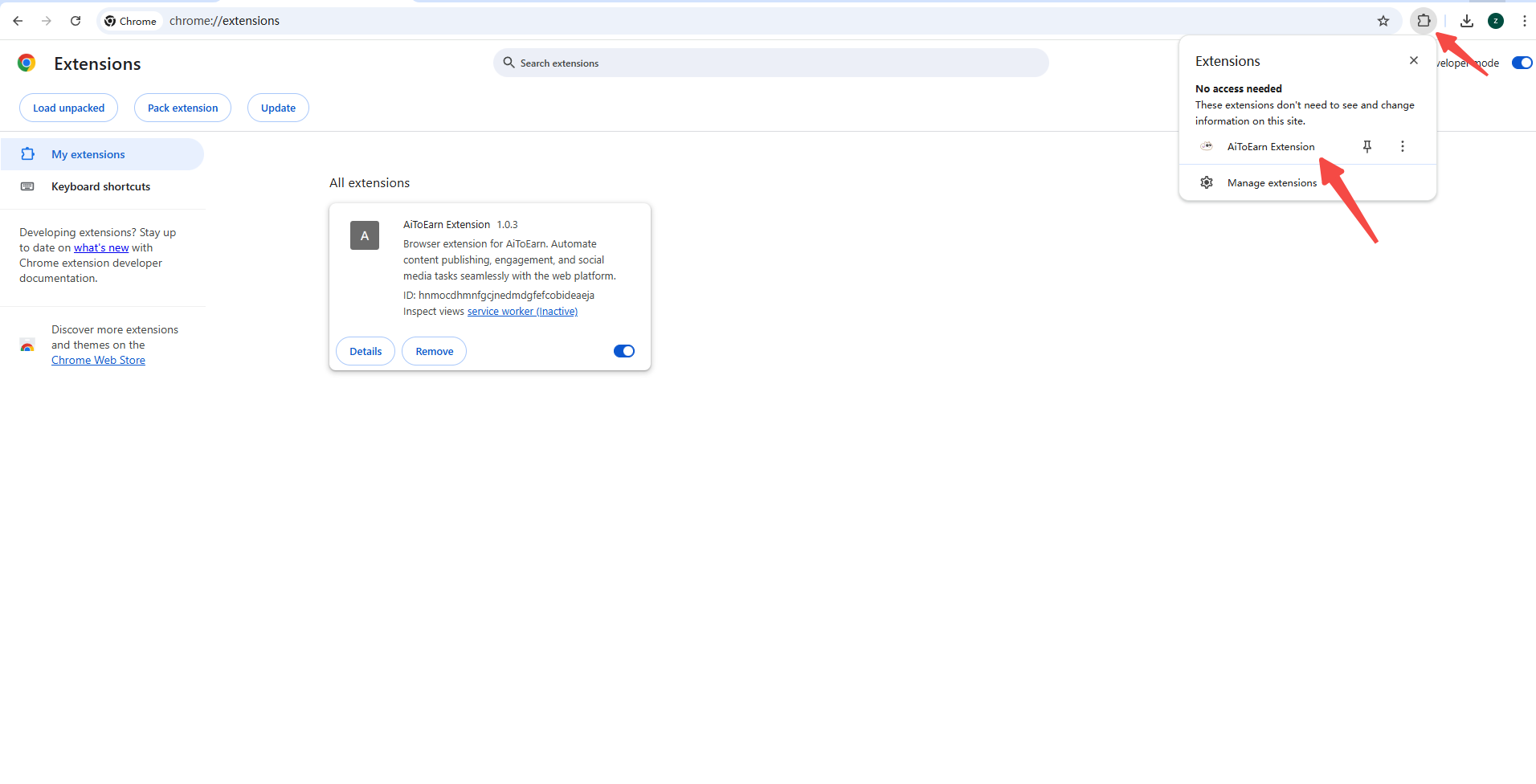
After installation, click the browser's extensions button to check if the installation was successful.
Step 4: Authorize the Plugin
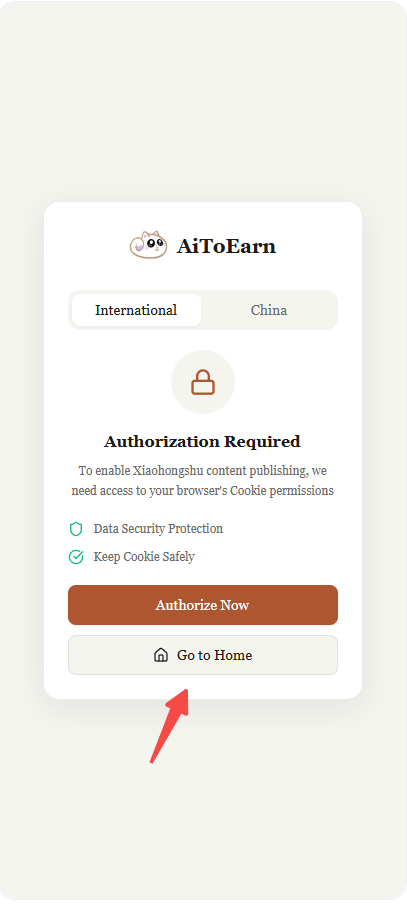
If you are not logged in on the AiToEarn homepage, click "Go to Home" to go to the AiToEarn homepage and log in.
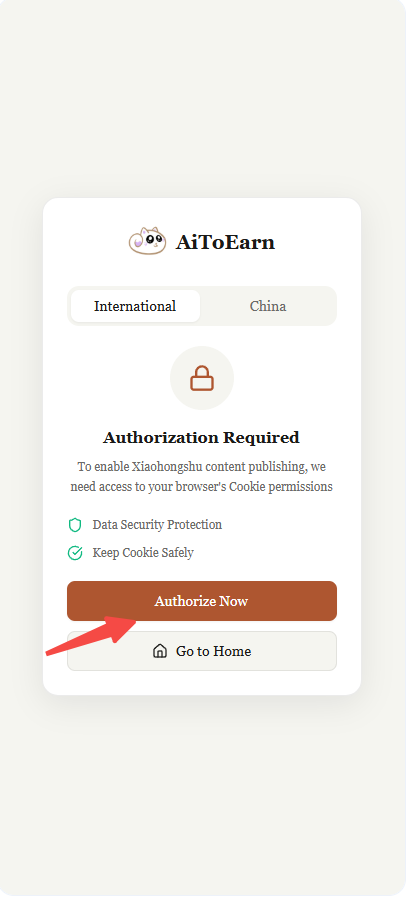
If you are already logged in on the AiToEarn homepage, click "Authorize Now" to authorize.
Step 5: Confirm Plugin is Ready
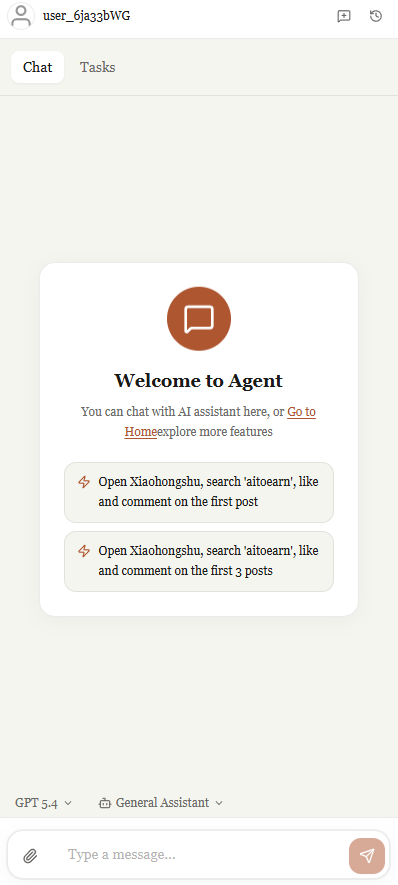
Permission has been granted successfully. Next, open the AiToEarn platform, refresh the page, and you will see the plugin is ready. Click on it to view details.
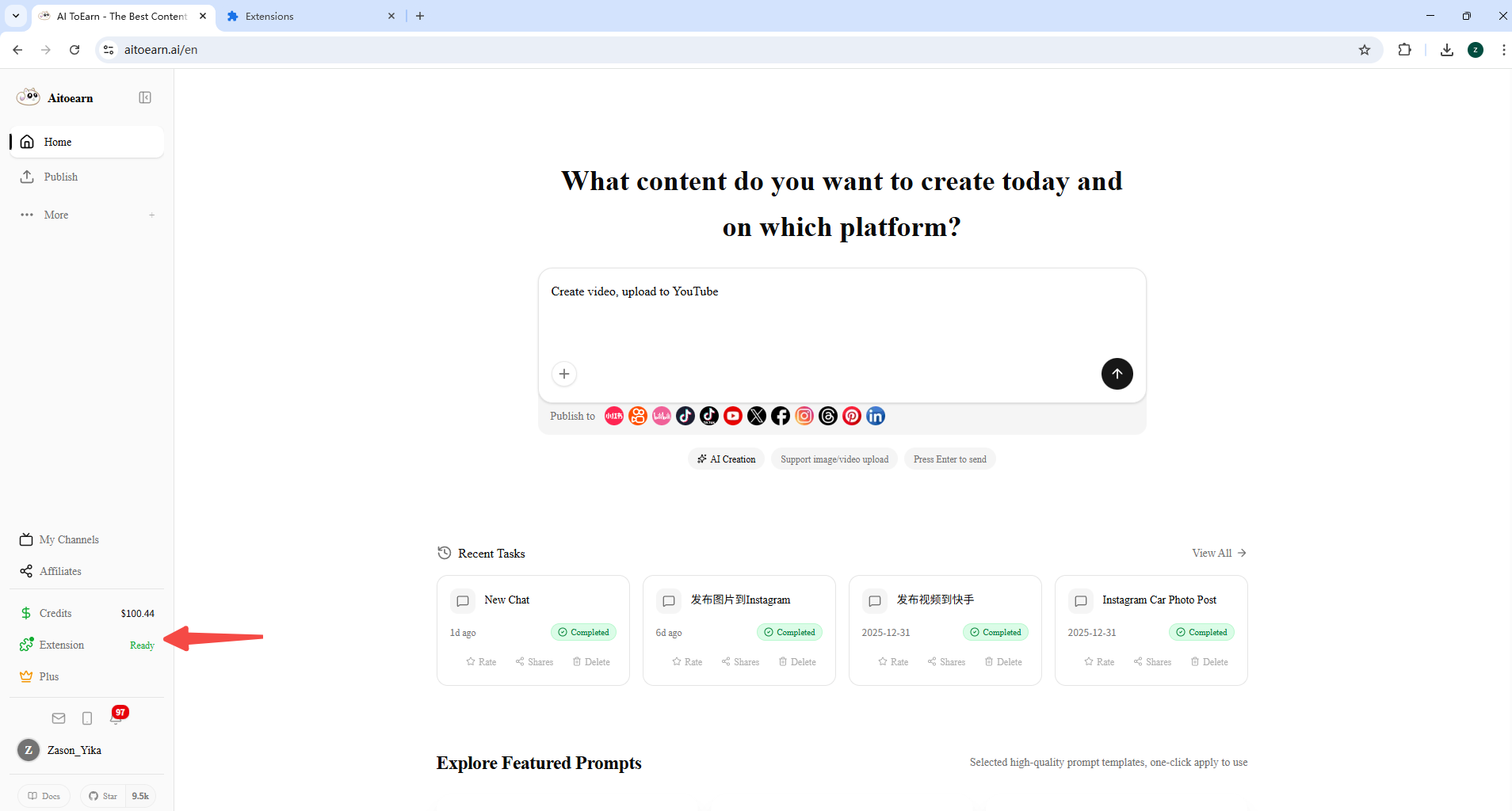
Login Social Media Account
Step 6: View Account Information
Click the "Extension" button to view account login status. If it shows not logged in, please log in to the corresponding social media platform first.
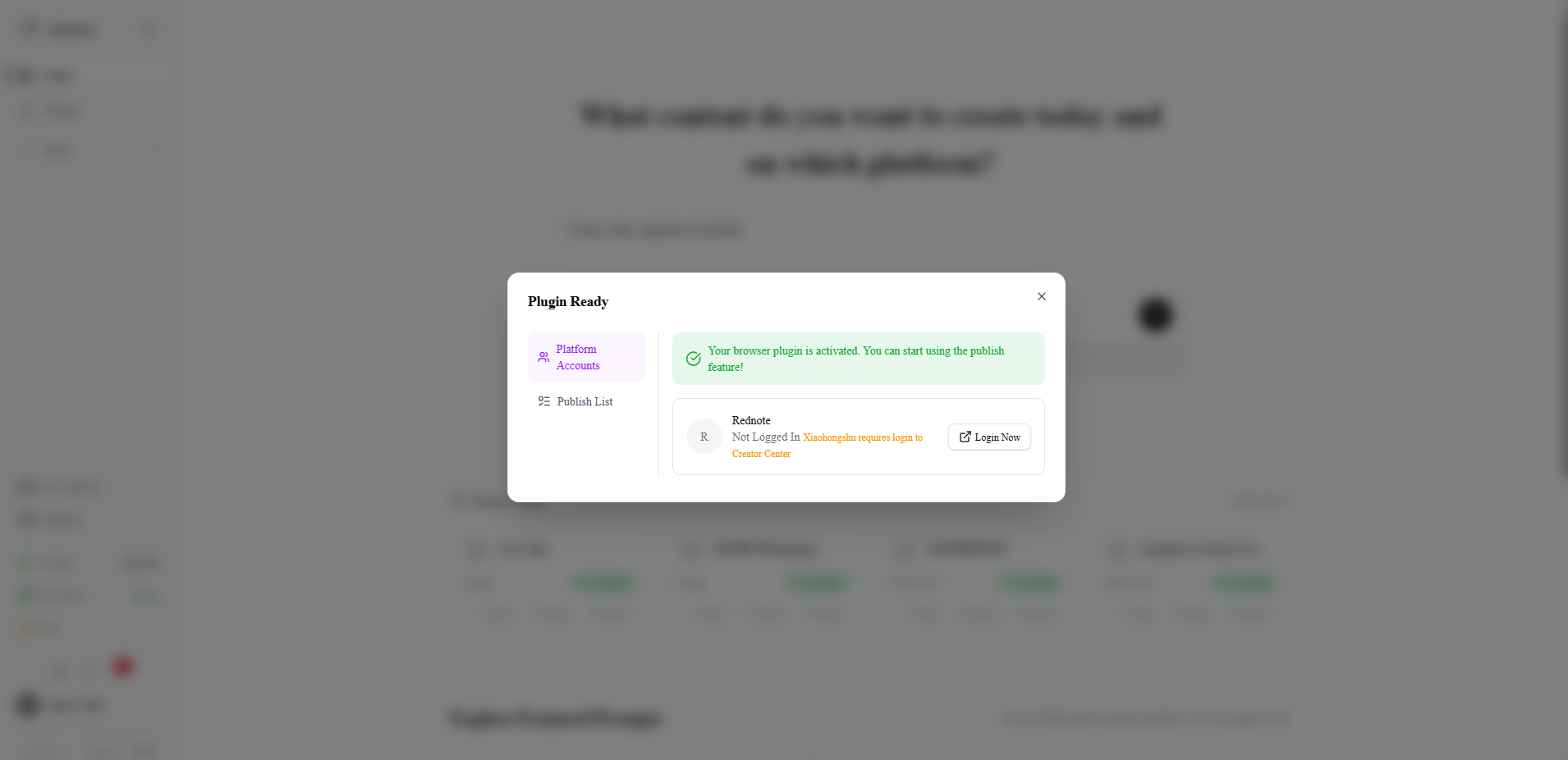
Login Xiaohongshu Account
Click "Login Now" to jump to the Xiaohongshu page to log in. After logging in, you also need to log in to the Creator Center.
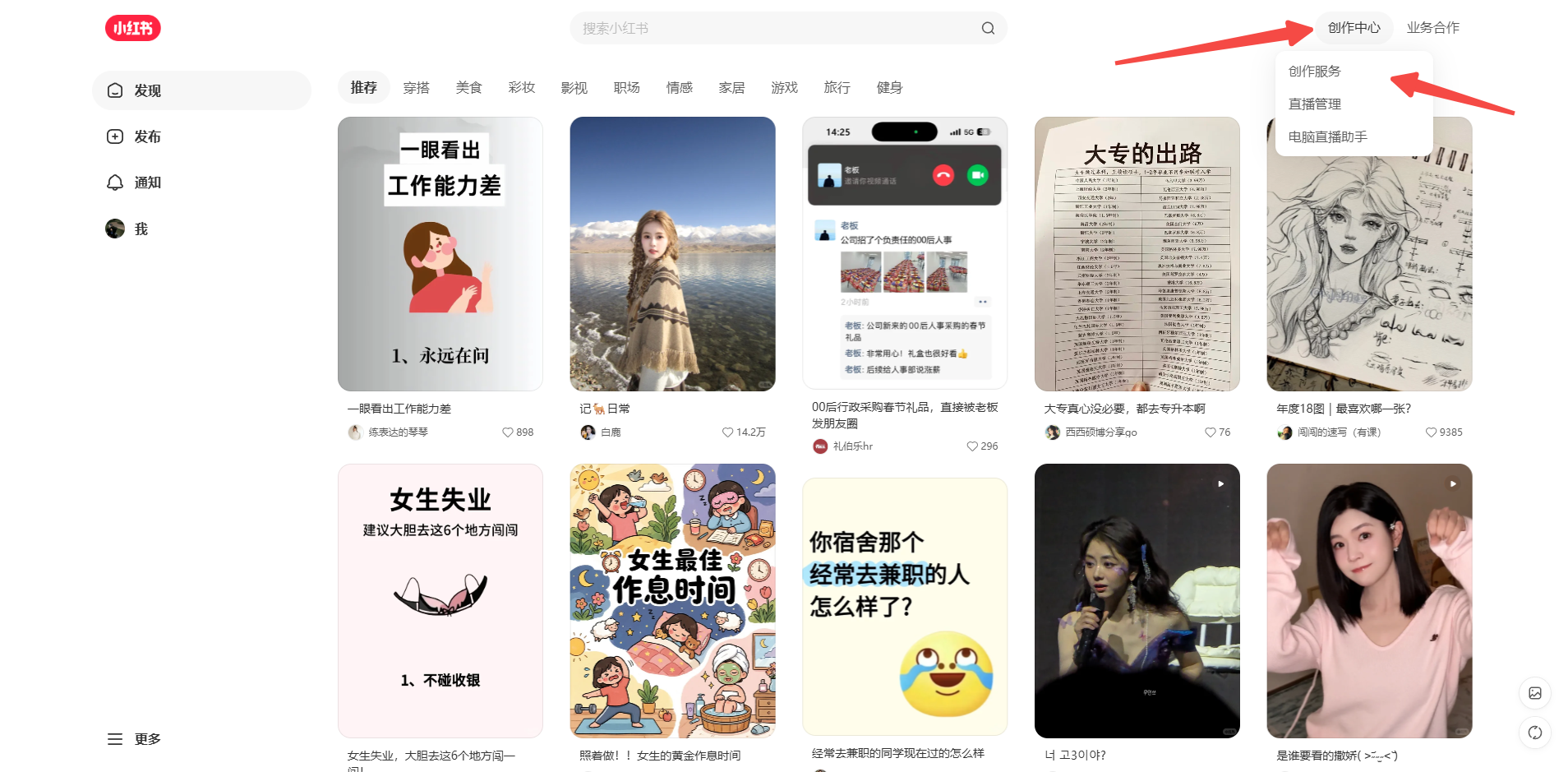
Important Notice
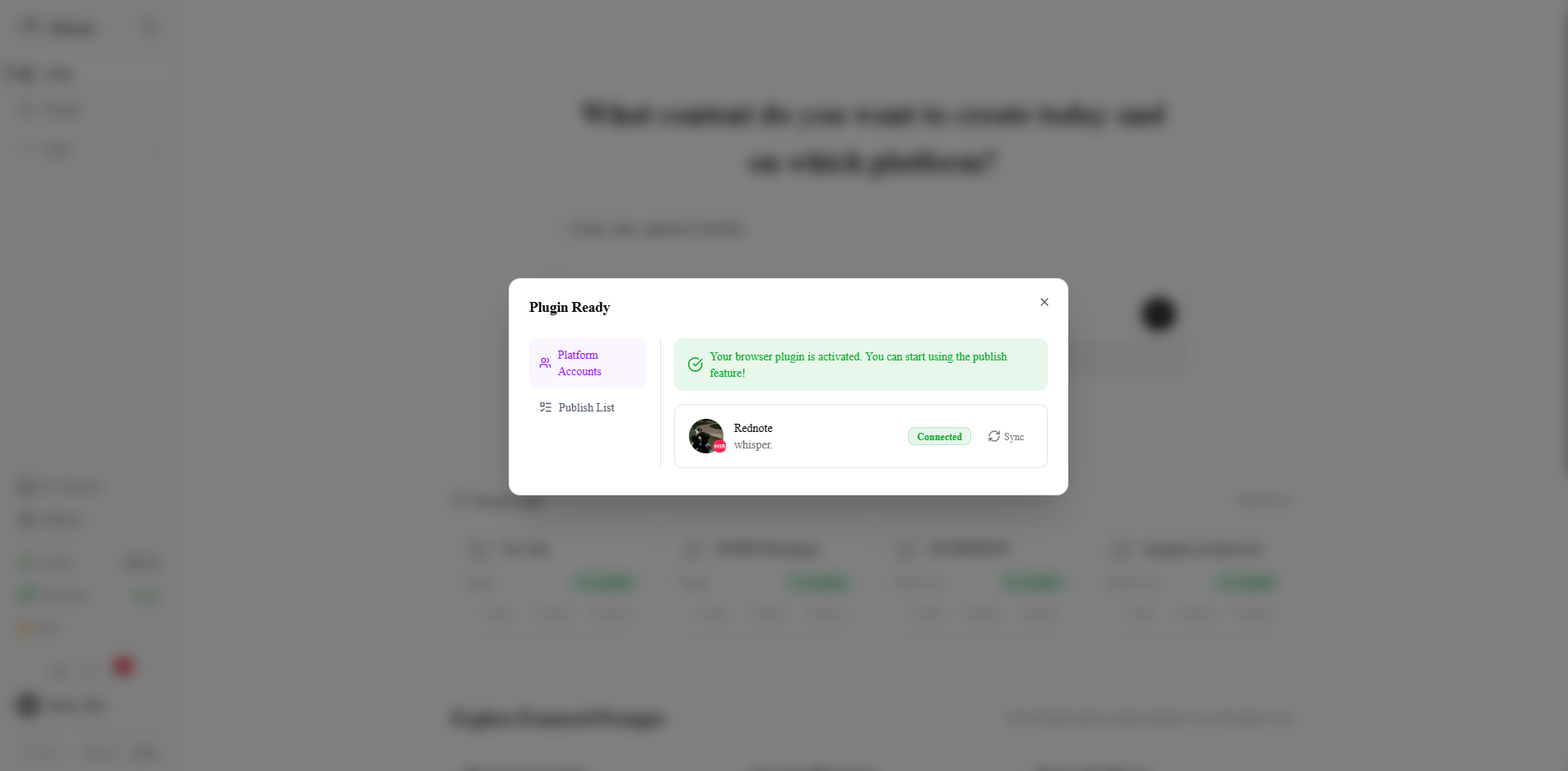
Sync Account
Step 8: Sync Accounts
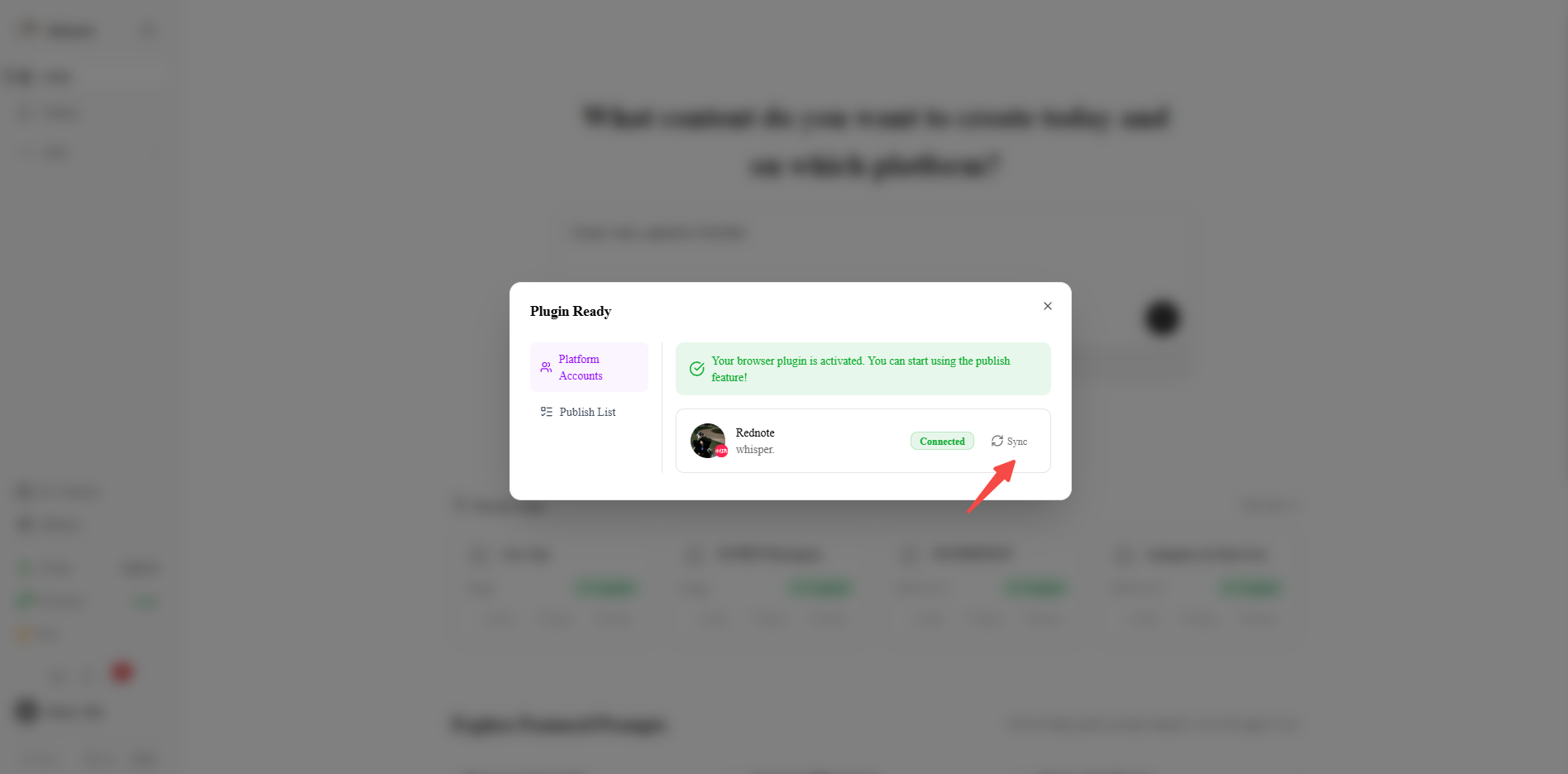
You can sync accounts to account management here. Click the [Sync] button, and the account will be synced to our database.
View Sync Results
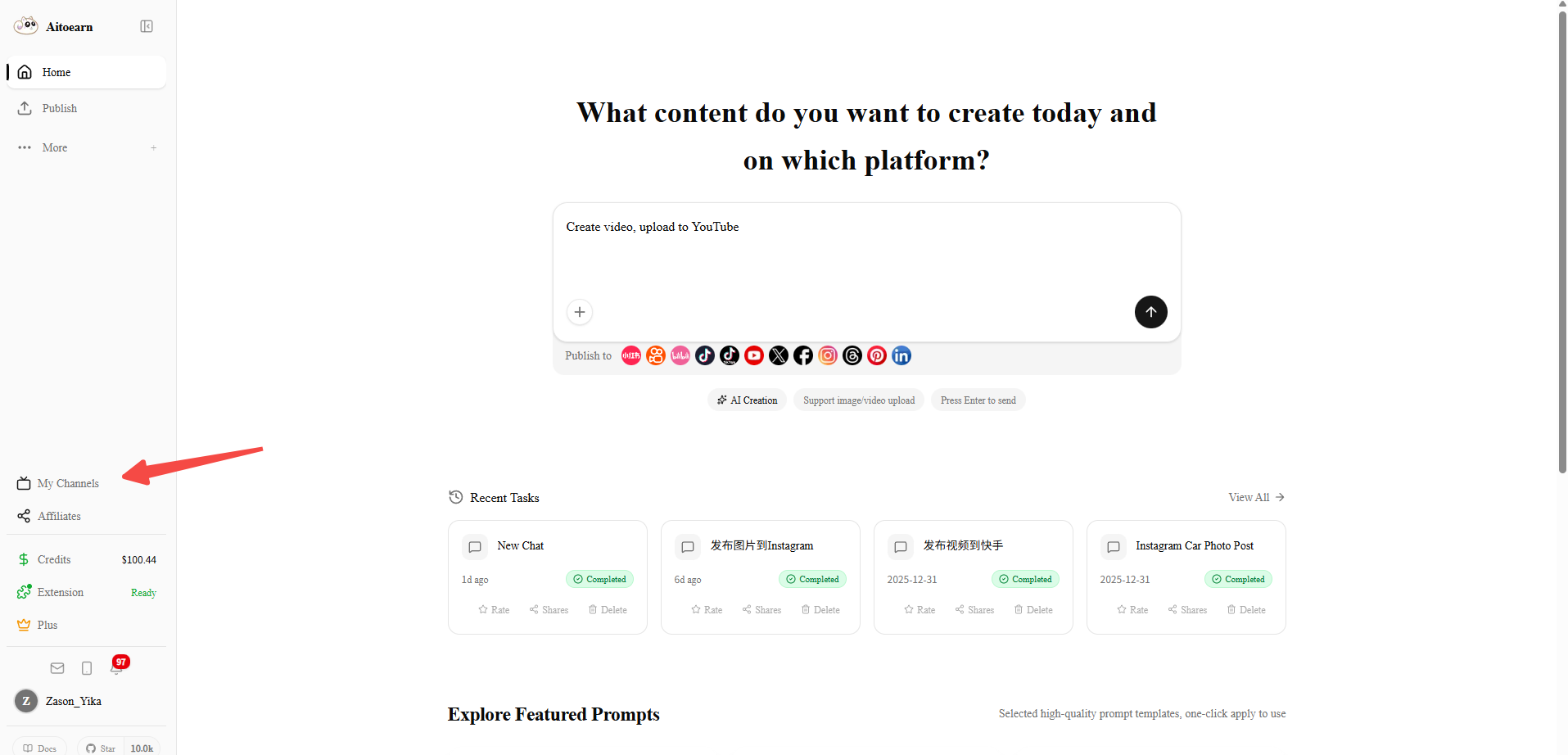
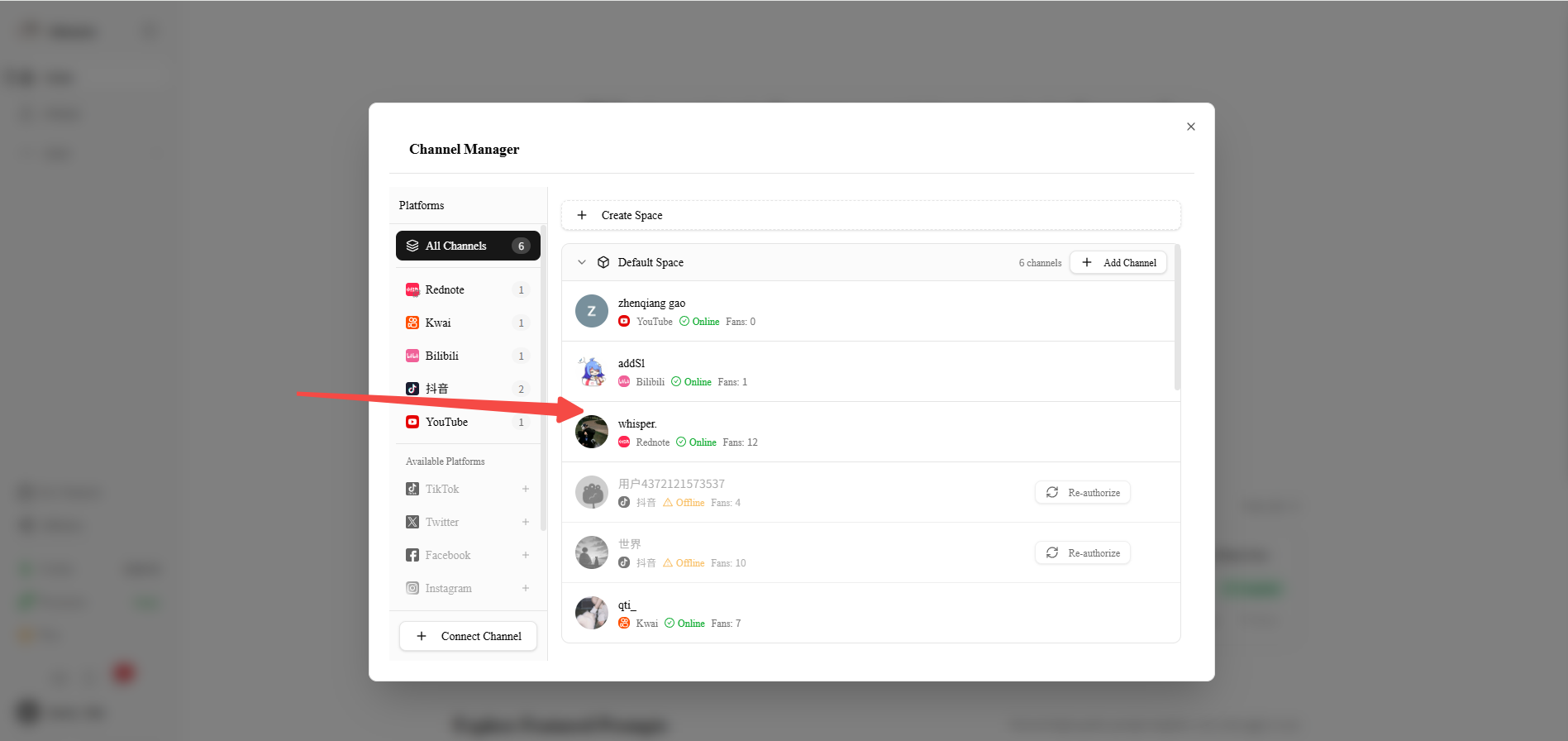
Return to the AiToEarn homepage and click "My Channels" to enter the account management page.
Done
Now you can use the AiToEarn platform normally!
FAQ
Q:Why does the plugin still show not logged in after I logged into Xiaohongshu?
A: You may not have logged into the Xiaohongshu Creator Center. On the Xiaohongshu homepage, click the button in the upper right corner to quickly log into the Xiaohongshu Creator Center.